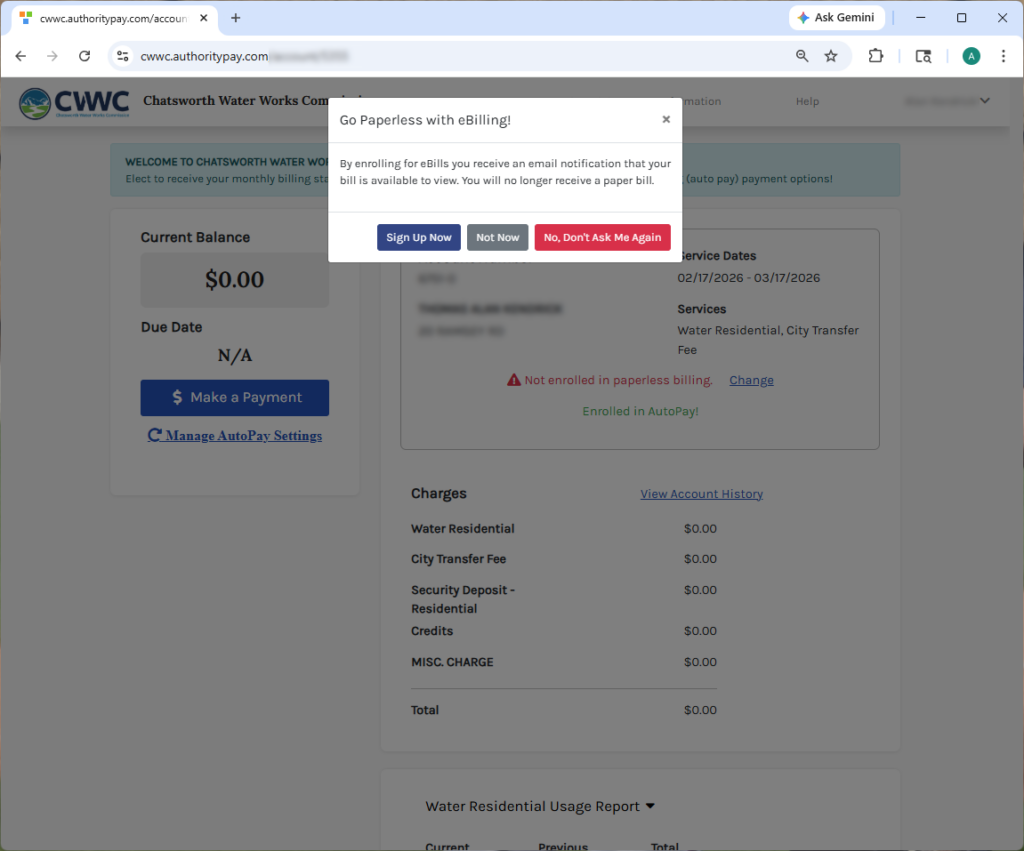
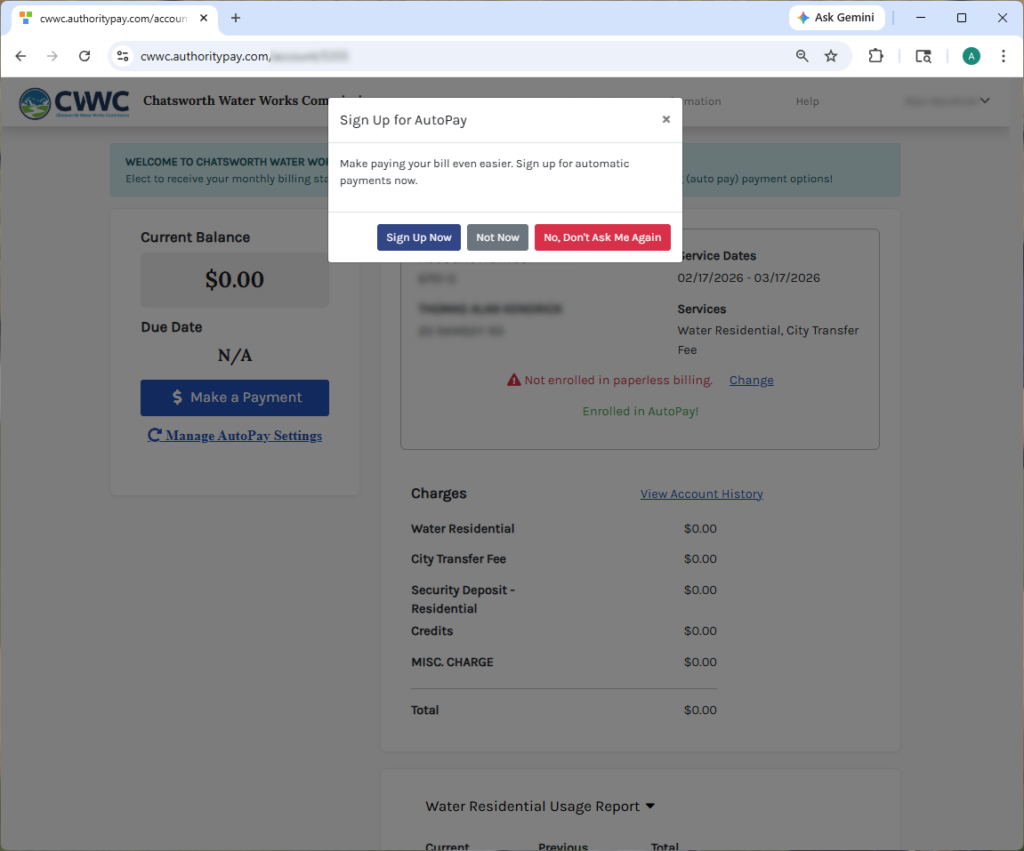
When you click the Pay Bill Online button on our website you will be taken to this page. Under the Log in button, click Create a new account.
If you have previously registered, click Log in.
After clicking Create a new account you will be taken to this page. Fill out this form and click Create Account.
You Account Number and CID are located on your bill.
Select an option for eBilling.
Select Sign Up Now to enroll in Autopay.
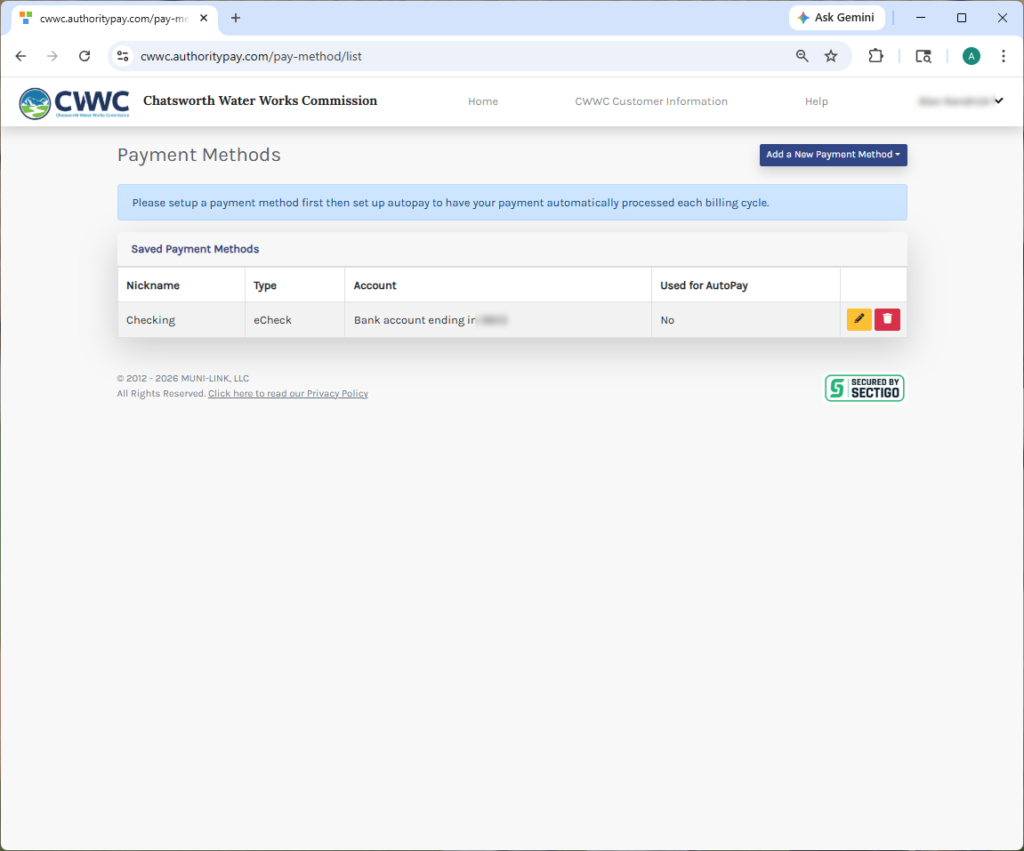
Click the Add a New Payment Method button.
Choose Credit Card or eCheck.
If using a Credit Card, fill out the Credit Card Payment Profile form and click Create Credit Card Payment Profile.
If using an eCheck, fill out the eCheck Payment Profile form and click Create eCheck Payment Profile.
Give your payment profile a nickname and click Save Payment Method.
Your payment method should now appear under Saved Payment Methods.
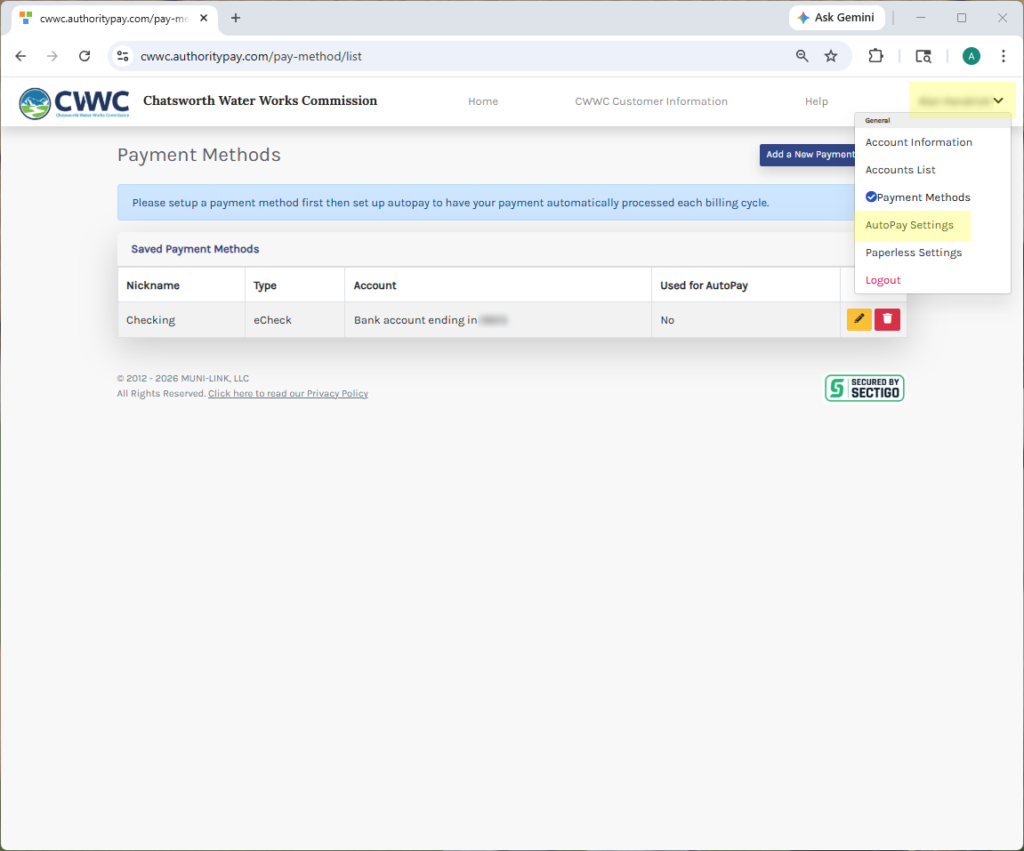
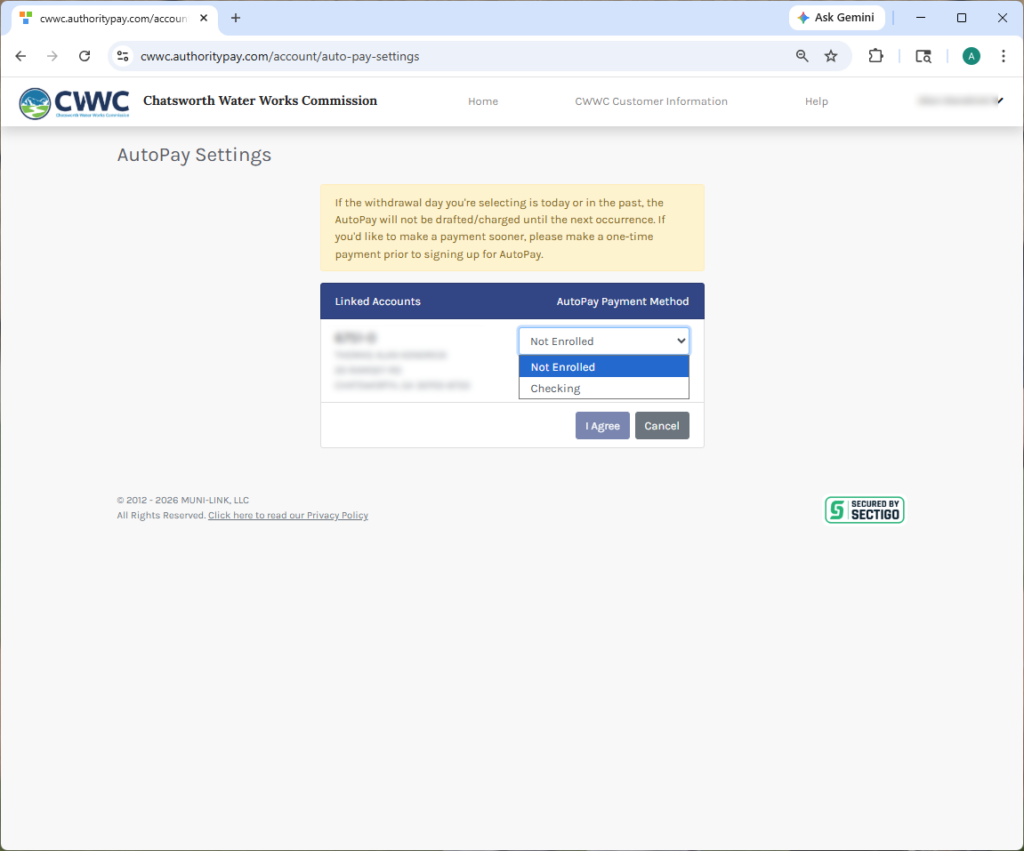
Click on your name in the upper right corner, then select AutoPay Settings from the dropdown menu.
Click the dropdown and select your AutoPay method that you previously set up (Credit Card or eCheck).
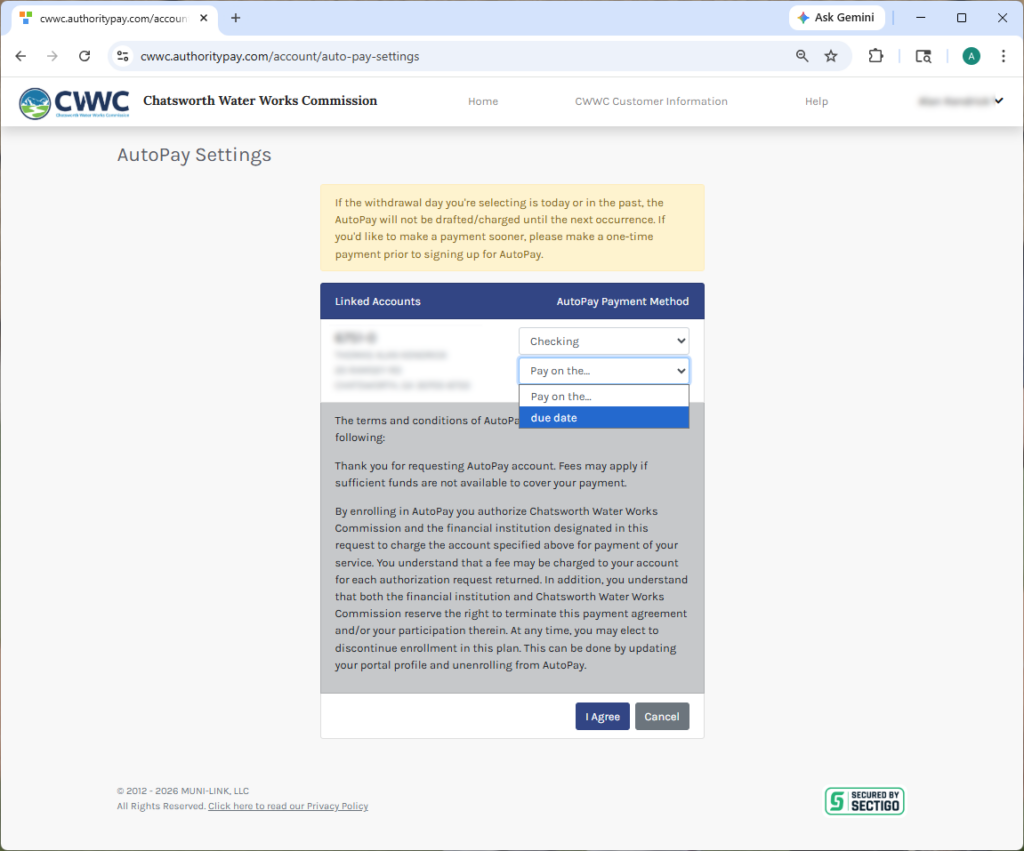
Click the Pay on the… dropdown and select due date. After reading and agreeing to the terms and conditions, click the I Agree button.
After clicking the I Agree button you should get a message showing your AutoPay Settings have been successfully saved.
Our online payment portal will be down for maintenance starting Monday, July 6th at 3pm and should be back online by 9am on Wednesday, July 8th.
You can still make payments in the office during this time.